
Help
How to set up Family Thrive
Nineteen short steps, including everything new: shared tasks, minus points, scanning a school letter, the shopping reminder and kids’ own jobs and letters. Do one or two today and add the rest as your family settles in.
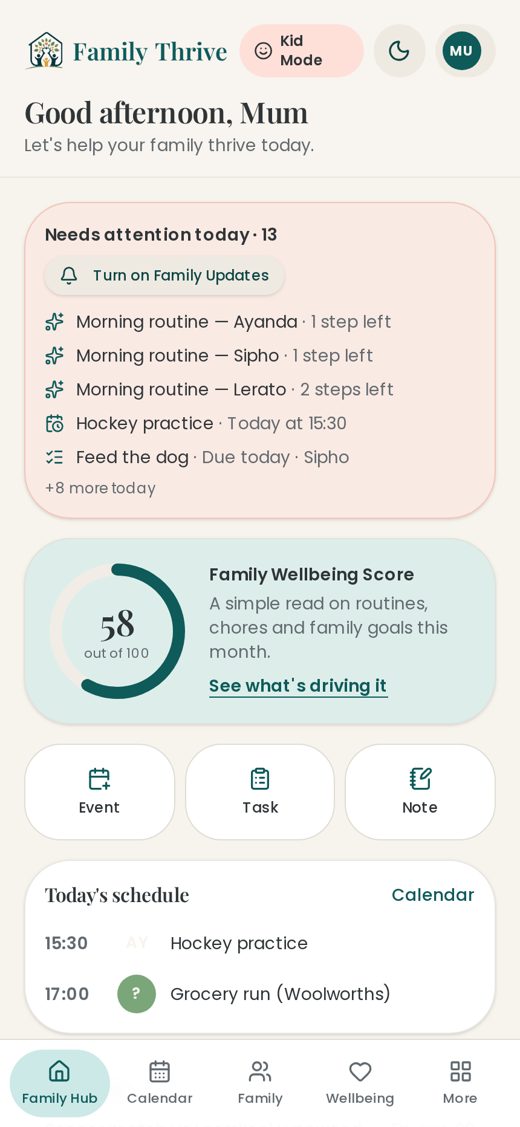
1. Start with the Family Hub
The Family Hub is your home screen and the only page you need to check each morning. It shows today’s events, the tasks that belong to you, what is coming up this week, anything a child has sent for approval, unfinished shopping items and a line for each child with their points and progress.
Where: Bottom bar → Hub
- 1Sign in and you land on the Family Hub.
- 2Tap a child’s row to open their profile, points, routines and chores.
- 3Tap “Add event” to plan something, or “Add task” for something to tick off.
- 4Anything waiting for you — chores to approve, rewards to say yes to — appears at the top.
- 5The bottom bar holds Hub, Family, Calendar and More; everything else lives under More.
2. Add your children
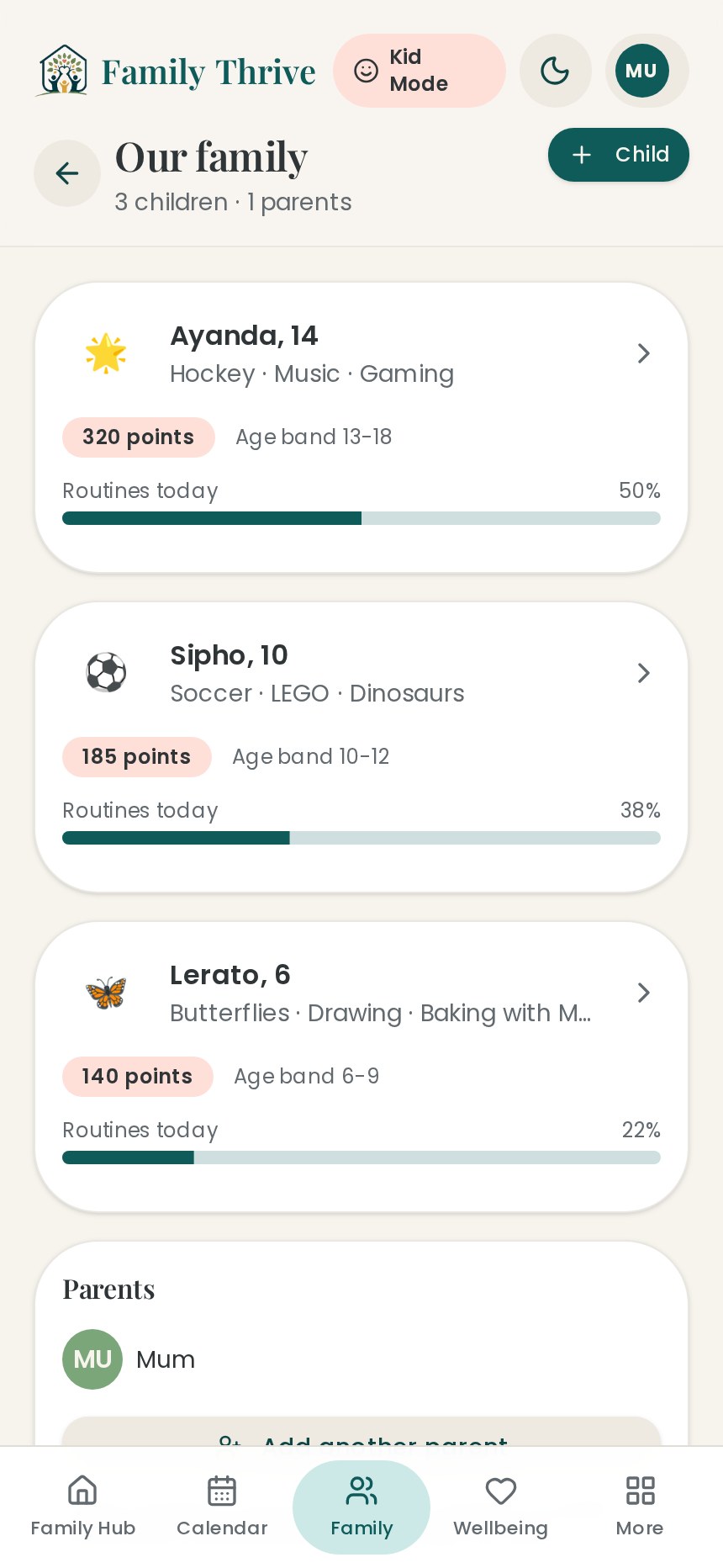
Each child gets a profile with their name, age and colour. Their age matters: it decides which starter routines, chores and coaching advice we suggest, and it keeps the language age-appropriate for children between 3 and 18.
Where: Bottom bar → Family → Add a child
- 1Go to Family and tap “Add a child”.
- 2Fill in first name, age and pick a colour — the colour is how they recognise themselves everywhere in the app.
- 3Save, then repeat for each child.
- 4Tap a child any time to edit them, see their points, or view their week.
- 5Everything in Family Thrive — routines, chores, rewards, letters — is kept separate per child.
3. Add the other parent
Two parents can use the same family from their own phones, and everything stays in step. For separated or divorced families a co-parent can be added who sees only the children’s information — chores, routines, rewards, letters and events marked as shared — and never the other household’s private calendar.
Where: Family → Invite / More → Kid devices for codes
- 1Open Family and tap the invite option to add a parent or a co-parent.
- 2Choose “Parent” for someone in the same home, or “Co-parent” for a second household.
- 3Send them the invite link, or give them the join code so they can enter it without creating anything first.
- 4When you add an event, choose whether it is shared with the other household or kept private.
- 5Co-parenting notes (More → Co-parenting notes) are for handover messages both homes can read.
4. The family calendar
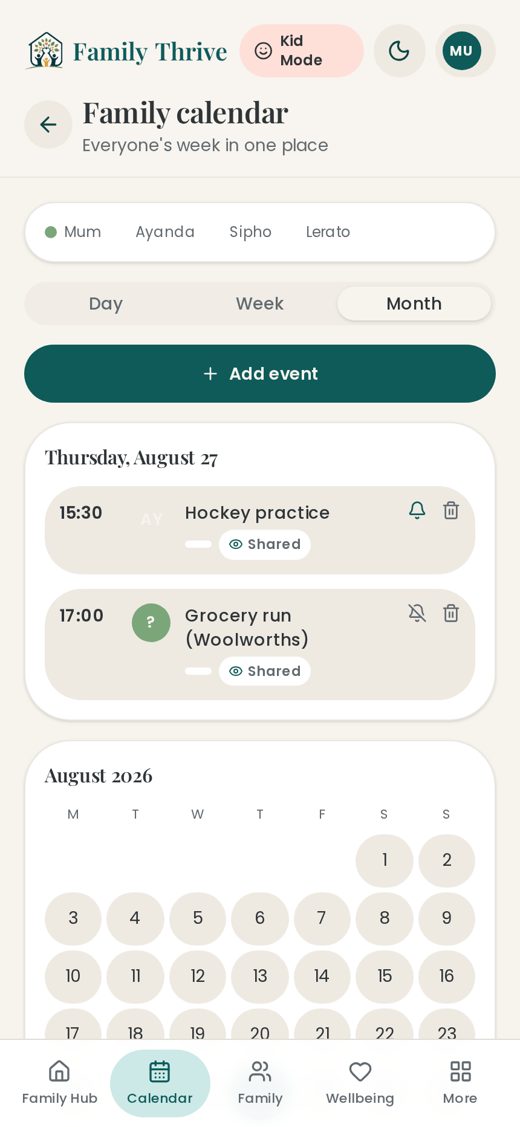
School, sport, appointments, work and family time in one place, with day, week and month views. Each event can belong to one child, several children, a parent or everyone, and can carry notes for the extra details you always forget.
Where: Bottom bar → Calendar
- 1Tap Calendar, then the “+” to add an event.
- 2Give it a title, pick the date, start time and finish time, and add notes for anything extra.
- 3Choose who it is for — one child, several, a parent or the whole family.
- 4Tap the bell on an event to switch its reminder on or off.
- 5Tap the pencil to edit and the bin to delete — in day, week or month view.
- 6In month view, tap any date and that day’s plan opens beside the grid.
- 7Events marked for a child also show in that child’s Kid Mode under “What’s on”.
5. Tasks you can share
A task is anything that must be ticked off by a certain day: forms to sign, kit to pack, a call to make. One task can belong to you, the other parent and a child at the same time, and whoever gets to it first ticks it off for everybody.
Where: Hub → Add task (or Calendar → new event → “This is a job to tick off”)
- 1On the Hub, tap “Add task”, name it and set the day (and time) it must be done by.
- 2Under “Who does it?” pick the main person, then add anyone else who must help.
- 3Your own tasks sit under “My tasks” on the Hub — tap one to read the full wording and notes.
- 4Tap “Edit in calendar” and the calendar opens on that date with the task ready to change.
- 5Tasks given to a child appear in Kid Mode under “My jobs” and carry no points.
6. Build routines
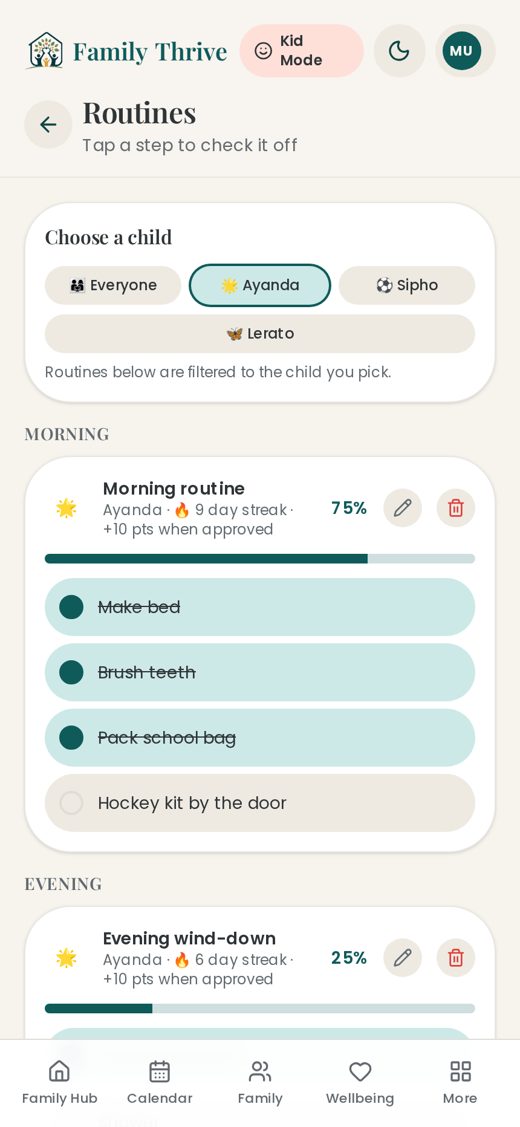
Routines are the repeating rhythms of the day — morning, afternoon and evening — broken into small steps a child can tick off on their own. Starter lists by age mean you can have a full routine running in under a minute.
Where: More → Routines
- 1Open More → Routines and pick a child’s tab.
- 2Tap “Add routine”, or choose a ready-made starter list for their age.
- 3Add the steps in the order they happen, keeping each one short.
- 4Set the points for finishing the whole routine, and points for keeping a streak going.
- 5Tap the pencil on any line to change it, or the bin to remove it.
- 6Unfinished ticks from yesterday clear overnight so each day starts clean.
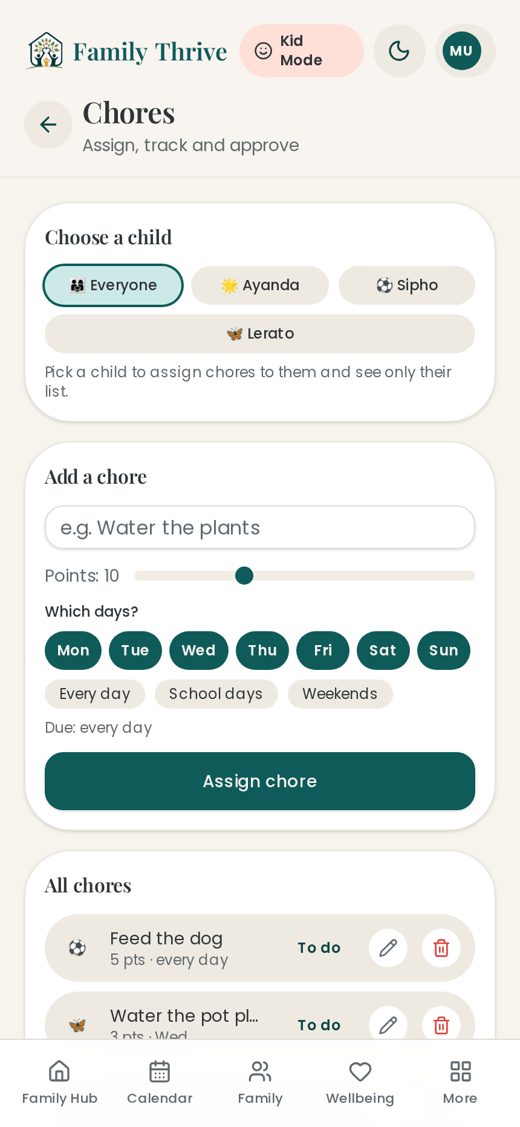
7. Chores, day by day
Chores run only on the weekdays you choose and are worth points once they are approved. Every day stands on its own: if yesterday is still waiting for your approval, your child can still tick today’s chore off.
Where: More → Chores
- 1Open More → Chores and pick the child’s tab.
- 2Tap “Add chore”, name it and set the points it is worth.
- 3Select the days of the week it should appear — daily, school days or just Saturdays.
- 4When your child ticks it, it shows as done for that day and waits for you.
- 5Approve (or decline) each day separately from the Hub or the chores page.
- 6Points are added once per chore per day, never twice.
- 7Extra chore ideas are grouped by age if you want more to choose from.
8. Points, months and carry-over
Points are earned from routines and chores and spent on rewards. Each calendar month starts fresh so progress is easy to see, but anything a child has not spent is carried over and added to the new month’s balance — they never lose what they earned.
Where: Child profile / Kid Mode
- 1A child’s balance shows on their profile, on the Family list and at the top of Kid Mode.
- 2Carried-over points are shown separately so everyone can see where the total came from.
- 3At the start of a month, the month’s progress resets while the balance stays.
- 4You can reset points for a child without deleting their routines, chores or rewards.
- 5Every change — earned, spent, minus points, carry-over — is kept in the history.
9. Rewards they save for
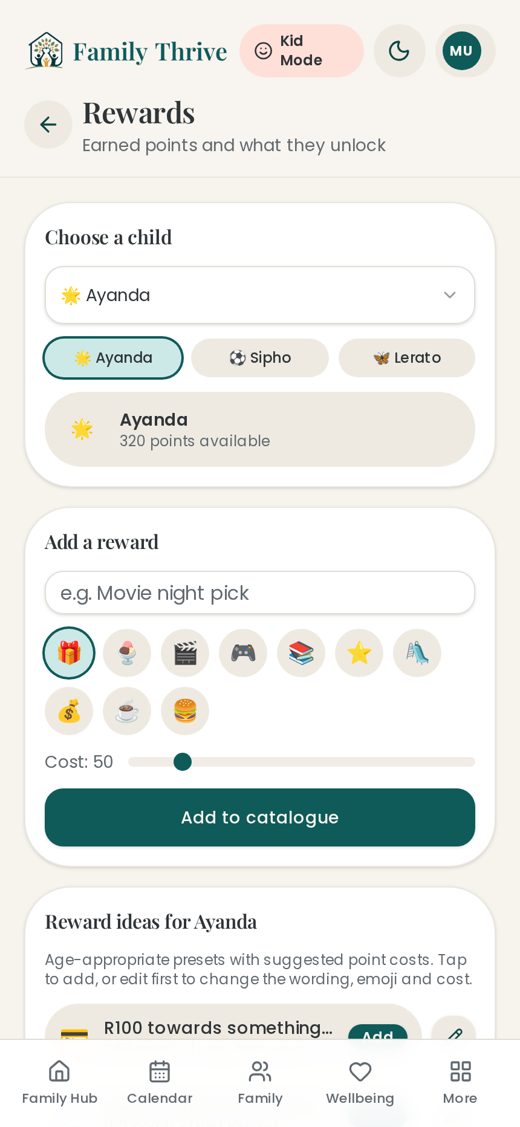
Each child has their own reward catalogue. Use the presets or add your own — screen time, a later bedtime, an outing — and set what each one costs in points. Children request a reward and you approve it, so nothing is spent without you.
Where: More → Rewards
- 1Open More → Rewards and choose the child’s tab.
- 2Tap “Add reward” or pick from the presets, then set the point cost.
- 3Start with a few cheap rewards so early wins feel possible.
- 4Edit or remove any reward on its line; rewards belong to that child only.
- 5When a child requests one, approve it and the points come off their balance.
- 6Badges celebrate milestones and can be edited or removed the same way.
10. Goals with a progress bar
Goals are the bigger things a child is working towards — reading every night, being ready on time, practising an instrument. Each goal has a bar to fill and points that land when it is full, so effort over weeks feels visible instead of vanishing.
Where: Family → tap a child → Goals (above Badges) / Kid Mode → My goals
- 1Open a child’s profile and scroll to Goals, just above their badges.
- 2Add a goal, set how many steps fill the bar, and set the points it is worth.
- 3Pick from the age-matched ideas if you would rather not start from scratch.
- 4Edit the wording, steps or points on the line at any time, or remove a goal.
- 5In Kid Mode the goal sits above the badges with its bar; your child taps +1 each time they do it.
- 6When the bar fills, the points are added to their balance and they earn the 🏆 Goal getter badge — it can only pay out once.
- 7Children can add a goal of their own, which you will see on their profile.
11. Minus points, used gently
When something is repeatedly not done, or behaviour needs a consequence, you can take a small number of points off. The child sees it in Kid Mode with the reason attached, so it is never a mystery — the aim is a nudge and a conversation, not a punishment.
Where: More → Demerits
- 1Open More → Demerits and choose the child.
- 2Pick one of the ready-made reasons or write your own.
- 3Set a small number of points — small and consistent works better than big and rare.
- 4The child sees the reason on their own screen.
- 5Everything stays in the history so you can talk it through together later.
12. Consequence tracker
For the bigger moments. Write down what was agreed, when it starts and when it ends, so both parents follow through the same way and nothing is enforced twice or forgotten by bedtime.
Where: More → Consequence tracker
- 1Add the behaviour, the agreed consequence and the dates it runs.
- 2Both parents see the same entry, so there is one version of events.
- 3Mark it complete when it has been served.
- 4Look back over past entries to spot patterns worth talking about.
13. Scan a school letter
Photograph or upload a school letter in any language. Family Thrive reads it, translates it into English and pulls out every date and time — arrival, start, collection — plus everything that must be packed, paid or signed, ready for you to check before anything is saved.
Where: More → Scan a letter
- 1Tap “Take a photo” or “Upload a file” — photos or PDF.
- 2Check the calendar dates it found; arrival, start and collection stay as separate entries.
- 3Check the jobs it found, choose who each belongs to — you, the other parent or a child — and by when.
- 4Edit any line before you save if the wording or time needs fixing.
- 5Choose whether to keep the letter, and whether your child may see it in Kid Mode.
- 6Saved dates land in the calendar and saved jobs in the right person’s task list.
14. Shopping list with a reminder
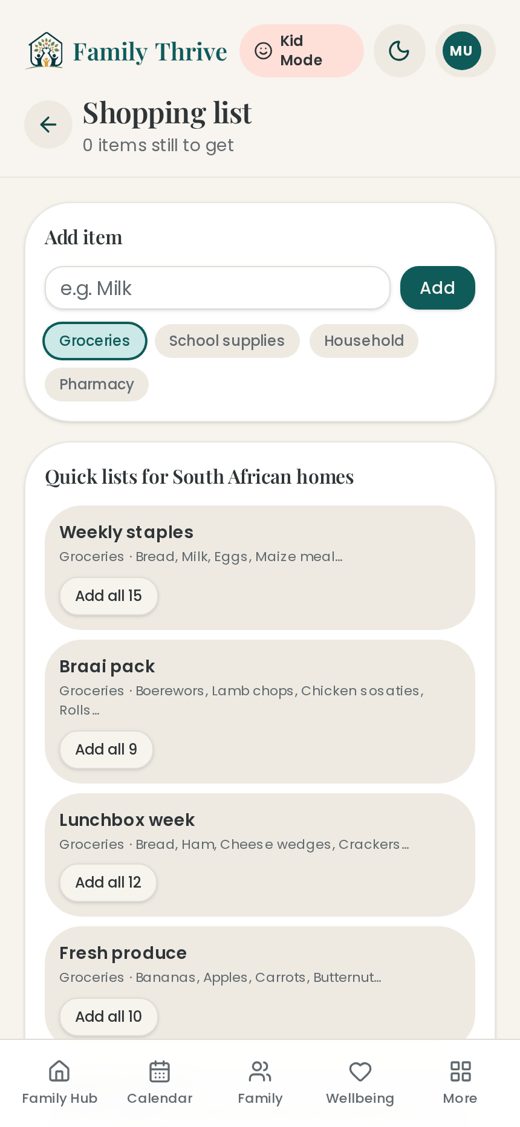
One shared list both parents can add to from anywhere, grouped by aisle so the shop goes faster. Set a day and time and your phone reminds you before you drive past the shops.
Where: More → Shopping list
- 1Add items as you think of them — the other parent sees them immediately.
- 2Items are grouped by aisle automatically.
- 3Set a reminder day and time, and repeat it weekly if you always shop the same day.
- 4Unfinished items also show on the Family Hub so nothing is forgotten.
- 5Tick items off in the shop; the list clears as you go.
15. Plan the week’s meals
Set the week’s menu once and stop answering “what’s for supper?” every evening. Built-in ideas help on the weeks when inspiration runs out, and you can add what you need to the shopping list while you plan.
Where: More → Meal planner
- 1Open More → Meal planner and tap a day.
- 2Type a meal or pick one of the suggestions.
- 3Add missing ingredients to the shopping list while you are there.
- 4Change any day at any time — nothing is locked in.
16. Set up Kid Mode on their device
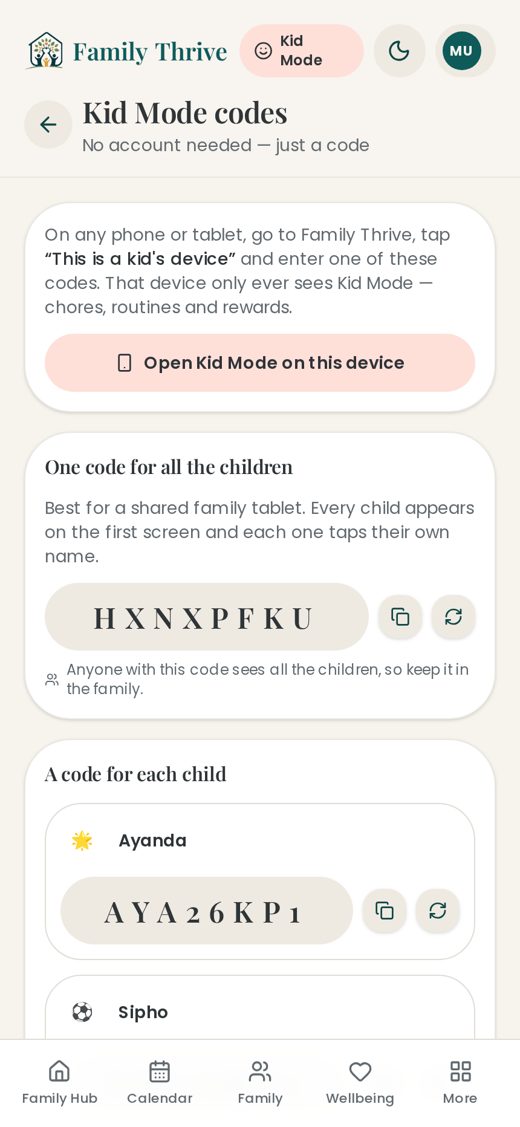
Kid Mode is a simple, locked view for a child’s own phone or tablet. There is no email and no password — the device is unlocked once with a code and stays in Kid Mode after that, even if it is closed or loses signal.
Where: More → Kid devices
- 1On your phone: More → Kid devices, then copy one child’s code, or the code that covers all children.
- 2On the child’s device open familythrive.app and tap “Kid Mode”.
- 3Enter the code once — that device is now a Kid Device.
- 4Add it to their home screen so it opens straight into Kid Mode like an app.
- 5You can change or remove a code any time to take a device out of Kid Mode.
17. What kids see
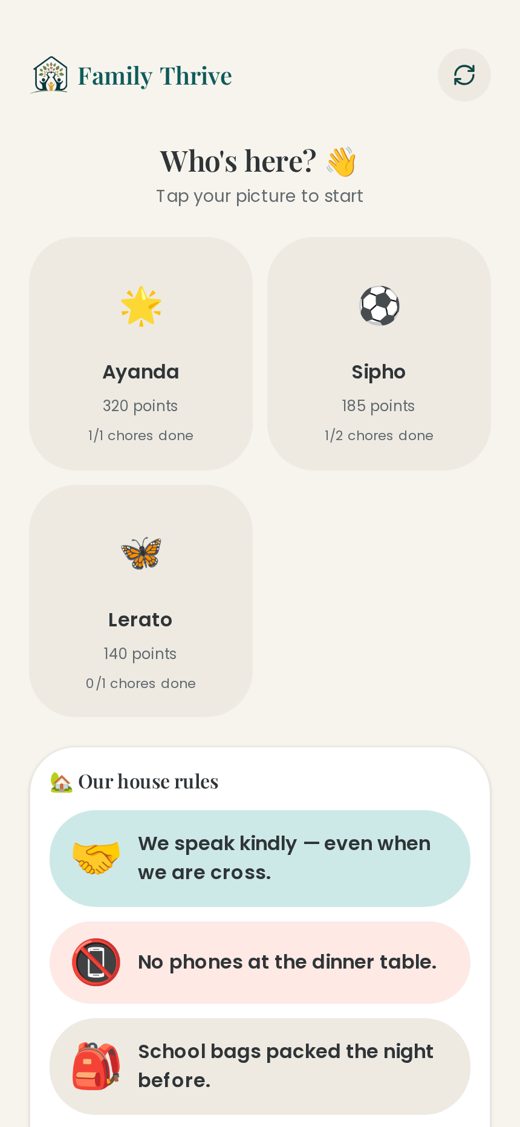
The device starts by asking who is using it. Once a child taps their own name they see only their own points, routines, chores, rewards, jobs, letters and events — nothing belonging to a sibling or a parent.
Where: On the child’s device
- 1They tap their own name on the “Who’s here?” screen.
- 2Their home screen shows points, streaks and today’s list.
- 3They tick off routine steps and chores as they go.
- 4They can do a mood check-in and ask for a reward.
- 5Several children can share one tablet by choosing their own name each time.
18. A child’s home screen
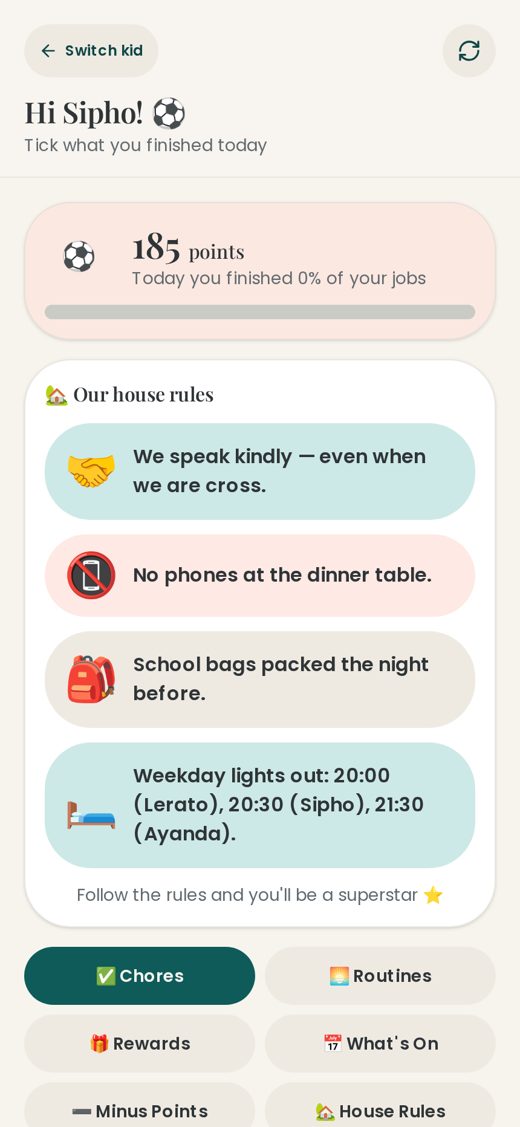
Everything in big, friendly tiles: points to spend, what to do today, rewards to aim for, jobs, letters and what is coming up this month.
Where: Kid Mode → after choosing a name
- 1Points at the top show what they can spend, including points carried over.
- 2“Every day” holds their routines and chores.
- 3“Rewards” is where they ask for something they have saved for.
- 4“What’s on” shows their events for the month, such as exams and matches.
- 5House rules show here too, so everyone reads the same thing.
19. Ticking things off
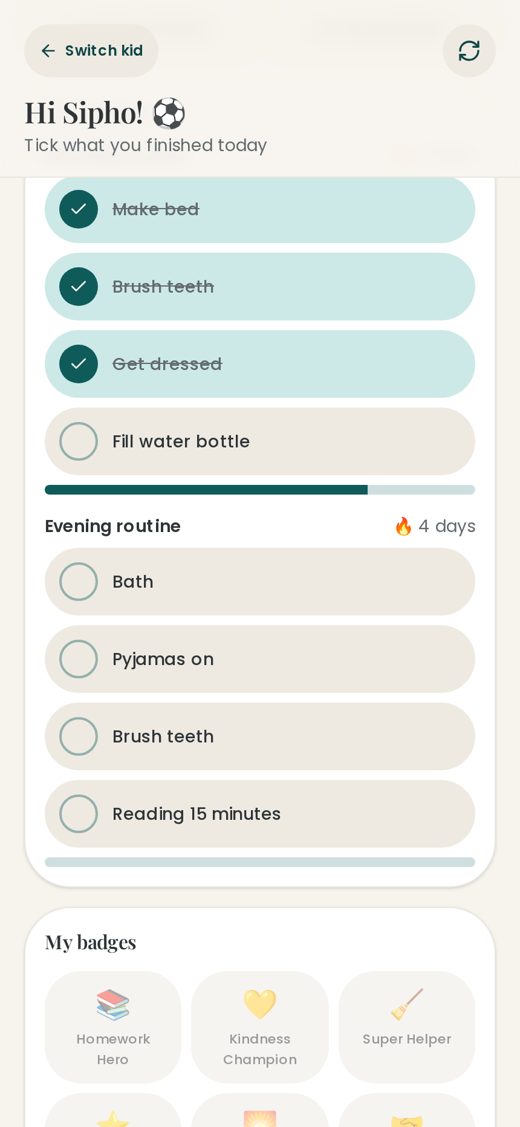
Kids tap each step and it saves straight away, even on a slow or dropped connection. A ticked chore stays done for that day while it waits for a grown-up, and tomorrow always starts fresh.
Where: Kid Mode → Every day
- 1Tap a step to tick it off; tap again to undo.
- 2Finishing a whole routine earns the routine’s points, and keeping a streak earns more.
- 3A ticked chore says “waiting for a grown-up to say well done”.
- 4Tomorrow’s chores appear unticked even if yesterday has not been approved yet.
- 5If the internet drops, ticks are kept and sent as soon as it comes back.
20. My jobs & Letters in Kid Mode
Anything you allocate to a child that is not a chore — pack swimming kit, return a form, practise a speech — shows under “My jobs”. Jobs carry no points; they are simply things that must happen by a certain day. Letters you chose to share appear under “Letters”.
Where: Kid Mode → My jobs / Letters
- 1Jobs are separate from chores and are never worth points.
- 2Your child ticks a job off when it is done, and you see it on your side.
- 3“Letters” shows any school letter you chose to share with them.
- 4They can upload a letter handed to them at school so you can read it.
- 5Hide a letter again at any time from your own screen.
21. Wellbeing check-ins
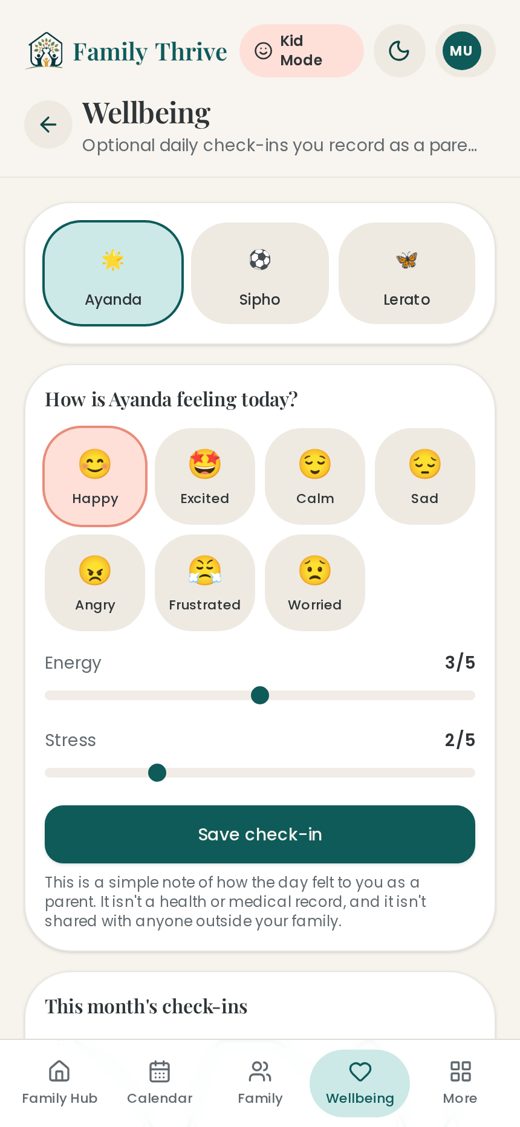
A daily mood face plus energy and stress sliders, for children and parents. The Family Wellbeing Score gathers it into one gentle number — it is a conversation starter, never a test or a grade.
Where: More → Wellbeing (or Kid Mode → mood)
- 1Ask your child to tap the face that fits today.
- 2They slide energy and stress to match how they feel.
- 3You see trends over the week on the Wellbeing page.
- 4The Family Wellbeing Score shows how the household is doing overall.
- 5Use a dip to open a chat, not to score anyone.
22. House rules
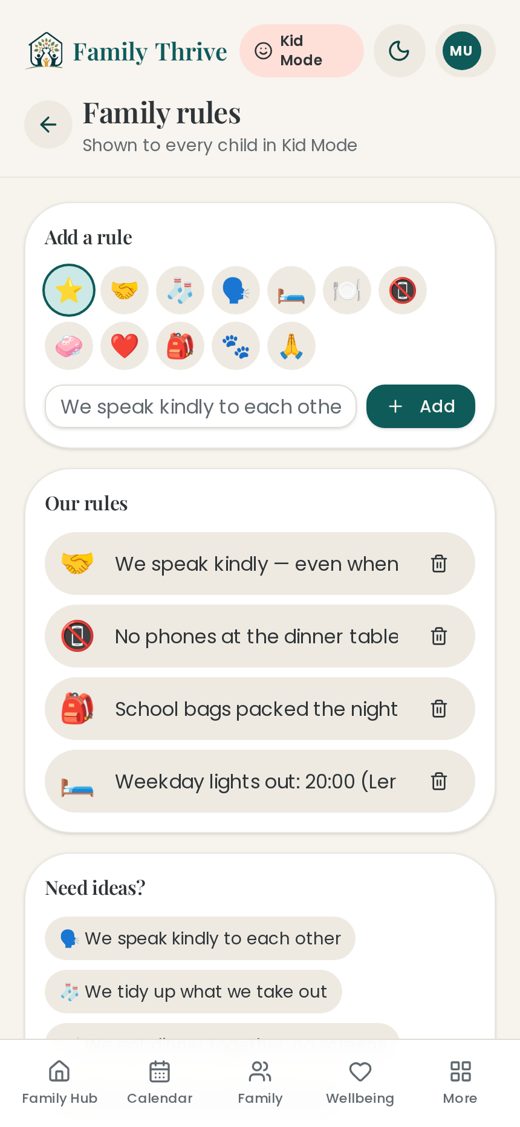
Write your rules down once so everyone is working from the same list, including the children, who see them in Kid Mode. Short, positive wording works best.
Where: More → House rules
- 1Open More → House rules and tap “Add rule”.
- 2Keep each rule short and say what to do, rather than what not to do.
- 3Edit or remove any rule with the icons on that line.
- 4Drag or add rules as your family changes — they save immediately.
23. Weekly family meeting
A guided twenty-minute agenda for the whole family: what went well, what was hard, what is coming up and what to agree on. It is the simplest way to make the rest of the app stick.
Where: More → Weekly family meeting
- 1Pick a regular slot — Sunday evening works for most families.
- 2Work through the agenda on screen, one prompt at a time.
- 3Agree changes to rules, chores or rewards while everyone is together.
- 4Write down what was agreed so nobody remembers it differently.
24. Coaching and parent plans
Age-specific guidance for the wobbles — bedtime, screens, homework, backchat, teens. Parent plans are your private space to write what you are trying and track whether it is actually working.
Where: More → Parent coaching / Parent plans & training
- 1Open Parent coaching and choose your child’s age band.
- 2Read the short, practical guidance for the situation you are facing.
- 3In Parent plans, write the approach you are going to try for the next two weeks.
- 4Come back and mark what worked; plans stay private to you.
25. Co-parenting notes
A shared handover space between two homes: medicine given, mood today, homework outstanding, what was packed. Everything is about the children, and neither household sees the other’s private calendar.
Where: More → Co-parenting notes
- 1Add a note at handover so nothing is passed on verbally and lost.
- 2Both parents see the same list, in order.
- 3Keep it factual and child-focused — the children may be shown it one day.
- 4Use events marked “shared” for anything that affects both homes.
26. Reports
Trends by child and by week: chores completed, routines kept, points earned and spent, mood over time. Useful before a family meeting, a parent evening or a chat with the other parent.
Where: More → Reports
- 1Open More → Reports and choose a child or the whole family.
- 2Compare this week with previous weeks.
- 3Look for the patterns, not single bad days.
- 4Bring one thing to celebrate and one thing to work on to your family meeting.
27. Phone reminders
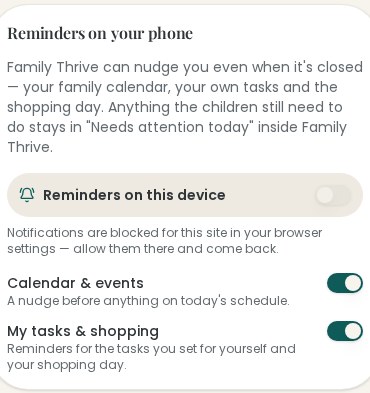
Reminders are for grown-ups: events, your own tasks, approvals waiting for you and the shopping list. They arrive even when Family Thrive is closed, and quiet hours keep them out of the night.
Where: More → Settings → Phone reminders
- 1Open More → Settings and switch on “Phone reminders”.
- 2Tap “Allow” when your phone asks about notifications.
- 3Choose which reminders you want and set your quiet hours.
- 4Tap “Send a test reminder” to be sure it works.
- 5Each parent sets this up on their own phone.
28. Put it on your home screen
Family Thrive runs from familythrive.app and installs to your home screen, so it opens full screen like any other app on Android, iPhone and tablet — no app store needed.
Where: Your phone’s browser menu
- 1iPhone: open familythrive.app in Safari, tap Share, then “Add to Home Screen”.
- 2Android: open familythrive.app in Chrome, tap the menu, then “Install app”.
- 3Do the same on a child’s device after entering their Kid Mode code.
- 4Updates arrive on their own — you never have to reinstall.
29. Your plan, privacy and account
Your plan covers the whole family on every device, with a 7-day free trial to begin. You can download everything your family has stored, and delete parts of it or the whole account, whenever you like.
Where: More → Your plan / Settings
- 1More → Your plan shows your trial, subscription and payments.
- 2Settings holds sign-out, password changes and your consents.
- 3Export your family’s data as a file to keep, at any time.
- 4Delete individual information or the whole account from Settings.
- 5Children’s information is only ever visible to the parents in your family.
30. Getting help
The Family Care Team reads everything you send. If something is broken or missing, telling us is the fastest way to get it fixed — most of what is in this guide started as a message from a family like yours.
Where: More → Send feedback
- 1Open More → Send feedback and describe what happened.
- 2Say which screen you were on and what you expected.
- 3Come back to this guide any time from More → How-to Guide.
- 4You can also email us and we will come back to you.
Need more help?
Our Family Care Team reads every message and usually replies within two working days.
Email the Family Care TeamFamily Thrive is shame-free. If a week falls apart, tomorrow is a fresh start.